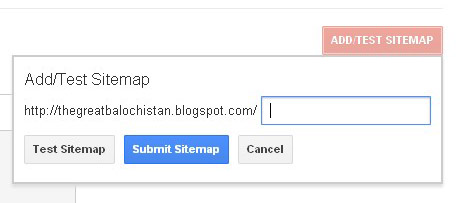
There must be a way which could let us to spread our selves on Internet. It becomes interesting when we think about the Online world, Because that's the space which is provided to every individual for exploring their experience with other people.

We've previously shared an article upon How to Submit Blogger Sitemap to Google . But in today's post I'm going to show you the way to index your posts on Bing and Yahoo. These are the search engines, for which you may be suggested or recommended to use in order to get free and unique visitors on your blog.
What are Bing and Yahoo & Why to submit Sitemap to them?
Bing and Yahoo are search engines used as second largest networks on the web by various users around the globe for seeking something new, what they care for. There are some functions provided by them like Google Webmaster for the same purpose of use. But the most important thing for you can be the indexing of your contents on Google, Because it has a great number of visitors which can be sent to you if you've their concern contents on your blog that they were seeking for. However, Here we're going to learn How to Submit Blogger Sitemap to Bing & Yahoo. It is not too difficult to submit blogger Sitemap to Bing and Yahoo. Yahoo has given the work of indexing to its partner Bing. That's why we don't need to submit blogger sitemap to Bing and Yahoo separately. It can be done by using the some of features provided by Bing. Now Let's Start it!
Verify Your Blog in Bing Webmaster Tool
First of all you need to create an email account of Microsoft or Hotmail in order to get logged into Bing Webmaster. When you've created an account, any of the above providers then just Sign in to Bing Webmaster Tools.

Paste your site's URL in the provided Top "Add a Site" box and hit on the "Add"

Now After that you'll be redirected to a page where you need to "Add Your Site" in first box. In the second box just add the "Same Site" including "atom.xml" at the end of it, then hit on the "Add". Which can be similar to the below image.

Clicking on "Add" will redirect you to the page where you find the way of verifying your blog's ownership with "Bing and Yahoo". For this purpose a meta tag would be given to you, which you've to keep in the template section of your blog and first of all copy that meta tag to save that in Notepad. The meta tag can be similar to the below existed in the image.

In order to keep meta tag inside blog's template just follow the below instructions:

The verification has been finished now and it is time to submit sitemap,by following the steps below.
How to Submit Blogger Sitemap to Bing and Yahoo?
Once again (After verification) go to Bing Webmaster Home Page and select the site you had added there.
After selecting the site just Go To Dashboard >> Configure My Site >> Sitemaps (at the left side)

Here I've explained the way of submitting sitemap to Bing and Yahoo Search Engines easily and simply. After doing all above process, We've few more steps to do to complete the whole process.
In the Sitemap box, Just paste the below code
http://www.samandarnichari.blogspot.com/atom.xml?redirect=false&start-index=1&max-results=500
Replace http://www.samandarnichari.blogspot.com with your site URL.
Note: The above code is for 500 posts only, But if you've more than 500 posts then just copy the below code which is consist of two lines as well as limited to the 1000 posts.
http://www.samandarnichari.blogspot.com/atom.xml?redirect=false&start-index=1&max-results=500
http://www.samandarnichari.blogspot.com?redirect=false&start-index=500&max-results=1000
Congratulation: After all you've now done the process of indexing your site over two important search engines which are Bing and Yahoo. These search engines have some partnership in other works as well; for example Advertising system is owned by both of these. That's why most of their works are done unitedly including their indexation.
You've done it!
We've previously shared an article upon How to Submit Blogger Sitemap to Google . But in today's post I'm going to show you the way to index your posts on Bing and Yahoo. These are the search engines, for which you may be suggested or recommended to use in order to get free and unique visitors on your blog.
What are Bing and Yahoo & Why to submit Sitemap to them?
Bing and Yahoo are search engines used as second largest networks on the web by various users around the globe for seeking something new, what they care for. There are some functions provided by them like Google Webmaster for the same purpose of use. But the most important thing for you can be the indexing of your contents on Google, Because it has a great number of visitors which can be sent to you if you've their concern contents on your blog that they were seeking for. However, Here we're going to learn How to Submit Blogger Sitemap to Bing & Yahoo. It is not too difficult to submit blogger Sitemap to Bing and Yahoo. Yahoo has given the work of indexing to its partner Bing. That's why we don't need to submit blogger sitemap to Bing and Yahoo separately. It can be done by using the some of features provided by Bing. Now Let's Start it!
Verify Your Blog in Bing Webmaster Tool
First of all you need to create an email account of Microsoft or Hotmail in order to get logged into Bing Webmaster. When you've created an account, any of the above providers then just Sign in to Bing Webmaster Tools.

Paste your site's URL in the provided Top "Add a Site" box and hit on the "Add"
Now After that you'll be redirected to a page where you need to "Add Your Site" in first box. In the second box just add the "Same Site" including "atom.xml" at the end of it, then hit on the "Add". Which can be similar to the below image.
Clicking on "Add" will redirect you to the page where you find the way of verifying your blog's ownership with "Bing and Yahoo". For this purpose a meta tag would be given to you, which you've to keep in the template section of your blog and first of all copy that meta tag to save that in Notepad. The meta tag can be similar to the below existed in the image.
In order to keep meta tag inside blog's template just follow the below instructions:
- Open a new tab in your browser (Note: Don't close bing webmaster tool tab until process is not finished)
- Go to Blogger >> Dashboard >> Template >> Edit HTML
- Find <head> and below it past that meta tag which you saved in the Notepad.
- Now just click to save template
- Go back and open bing webmaster tool tab and click on the "VERIFY" at the bottom of the page.
The verification has been finished now and it is time to submit sitemap,by following the steps below.
How to Submit Blogger Sitemap to Bing and Yahoo?
Once again (After verification) go to Bing Webmaster Home Page and select the site you had added there.
After selecting the site just Go To Dashboard >> Configure My Site >> Sitemaps (at the left side)
Here I've explained the way of submitting sitemap to Bing and Yahoo Search Engines easily and simply. After doing all above process, We've few more steps to do to complete the whole process.
In the Sitemap box, Just paste the below code
http://www.samandarnichari.blogspot.com/atom.xml?redirect=false&start-index=1&max-results=500
Replace http://www.samandarnichari.blogspot.com with your site URL.
Note: The above code is for 500 posts only, But if you've more than 500 posts then just copy the below code which is consist of two lines as well as limited to the 1000 posts.
http://www.samandarnichari.blogspot.com/atom.xml?redirect=false&start-index=1&max-results=500
http://www.samandarnichari.blogspot.com?redirect=false&start-index=500&max-results=1000
Congratulation: After all you've now done the process of indexing your site over two important search engines which are Bing and Yahoo. These search engines have some partnership in other works as well; for example Advertising system is owned by both of these. That's why most of their works are done unitedly including their indexation.
You've done it!